

CALENDAR SURVIVAL GUIDE
Role of the Project Calendar
The project calendar is assigned to a project in the FILE, Info, Project Information form:
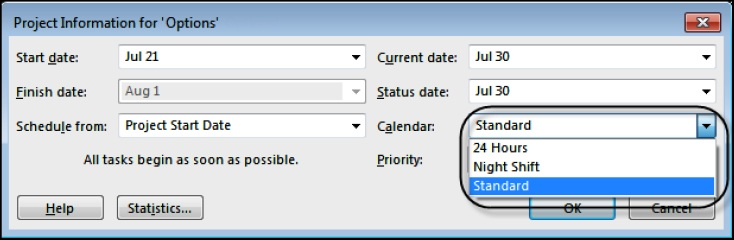
❖ New tasks are not assigned a calendar by default.
❖ All tasks that have not been assigned a Task Calendar calculate their Early Finish date from their Early Start date plus the Duration calculated from the Project Calendar.
❖ Therefore, a five-day duration task with a five-day workweek calendar, starting Wednesday, with Saturday and Sunday as non workdays, will finish at the end of the workday on the following Tuesday, see the picture below: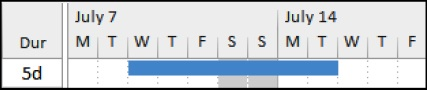
Note: A change to the Project Calendar may make substantial changes to the elapsed duration of all activities that have not been assigned a Task Calendar.
Guidelines for Creating Calendars
Calendars are created and edited using the PROJECT, Project, Change Working Time form. An unlimited number of calendars may be created:
❖ One calendar is assigned as the Project Calendar.
❖ Each task and resource may be assigned a unique calendar.
❖ The calendar assigned to a resource may be further edited to represent the resource’s unique availability. There are some guidelines that should be considered when contemplating the use of multiple calendars. These are summarized below:
❖ If you are able to schedule a project with only one calendar then do so; keep the schedule simple.
❖ The work hours per day for all calendars on a project should be the same for each workday, otherwise the Summary Task Duration in days will not all calculate correctly.
❖ Keep the Start and Finish times for all calendars the same, otherwise the Default Start and Finish Time will be incorrect for some tasks when Constraints or Actual Dates are assigned without times being displayed.
❖ When resources are assigned to a task without a Task Calendar then the Resource Calendar takes preference over the Project Calendar, unless Scheduling ignores resource calendars is checked in the Task Information form.
Display of Duration in Days
Microsoft Project effectively calculates in hours. The value of the duration in days is calculated using the parameter entered in the Hours per day: field in the FILE, Options, Schedule, Calendar options for this project section. It is VERY IMPORTANT to understand that all duration in days are calculated using ONLY this parameter with EVERY calendar irrespective of the number of hours per day in any calendar.
For example, when the Options form Hours per day: value is set to “8” then tasks assigned:
❖ An 8-hours per day calendar will have duration in days displayed correctly, and
❖ A 24-hours per day calendar will have duration in days displayed incorrectly, The picture below shows:
❖ Task 1 has the correct duration of 5 days, but
❖ Task 2 also shows a 5-day duration that is clearly misleading.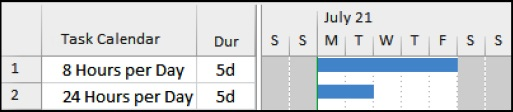
❖ Tasks 4 and 5 display the duration in hours and this is not as misleading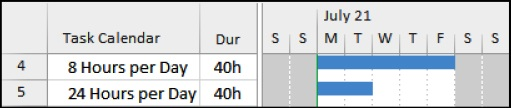
because the calendar column is also displayed. It is STRONGLY RECOMMENDED that you avoid assigning calendars with a different number of hours per day wherever possible.
There are some workable options to ensure that the duration in days are calculated and/or displayed correctly:
❖ All the calendars used on a project schedule should have the same number of hours per day for each day. This value is entered in the Hours per day: field in the FILE, Options, Schedule tab.
❖ When there is a requirement to use a different number of hours per day (in either the same calendar or in different calendars) then all duration should only be displayed in hours and the Task Calendar should also displayed in a column. The Duration is entered in: field in the FILE, Options, Schedule, Scheduling options for this project section should be set to Hours. Thus all duration will be entered by default in hours.
❖ A Customized Field may be used to calculate and display the correct duration in days using a formula. The formula below may be used to calculate the correct duration in a Duration Customized Field of tasks scheduled on a 24 hours per day calendar when the Project Calendar is an 8 hour per day calendar: IIf([Task Calendar]=“24 hr/day”,[Duration]*0.33,[Duration])
How to Assign Task Calendars
A task may be assigned a calendar that is different from the Project Calendar by:
❖ Displaying the Task Calendar column and editing the Task Calendar from this column, or
❖ Double-clicking on the task to open the Task Information form and selecting the Advanced tab.
After a calendar has been assigned, an icon will appear in the Indicators column and the calendar name displayed in the Task Calendar column, as shown in the picture below for the Installation Requirements task: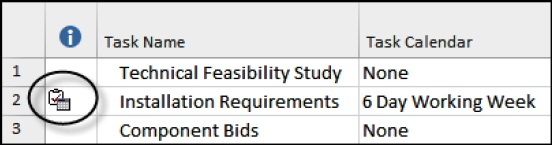
❖ The task Finish date, Total Float, Free Float and Variances from a Baseline will be calculated on the Task Calendar. This often leads to confusion for new users as tasks on a 24-hour/day calendar will have different Float than tasks on an 8-hour/day calendar.
❖ When resources are assigned to a Task, the Finish date is calculated on the Resource calendar; unless the Task has been assigned a calendar and the box in the Task Information form Advanced tab Scheduling ignores resource calendars is checked, then the task duration is calculated based on the assigned Task Calendar.
Other Things Task Calendars Affect
Float
Float (Slack) is calculated on the Task Calendar. Both tasks below have been scheduled to finish at 17:00 hours but have different Float values: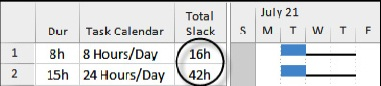
Lags
Lags are calculated on the Successor Calendar, and therefore affect the start date and time of successors:
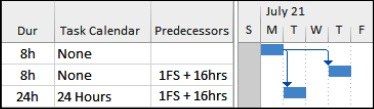
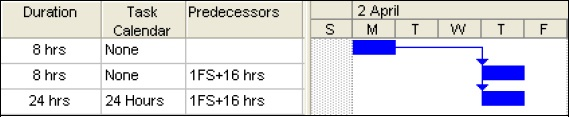
Note: Microsoft Project 2000 uses the Project Calendar to calculate lags, therefore files may calculate differently in 2000 from later versions. The example below is the file from the picture above and opened in Microsoft Project 2000:
Resource Calendars
Each resource is created with its very own editable calendar. Here are some important points:
❖ Each new resource is assigned a copy of the current Project Calendar as its Base Calendar.
❖ This Resource Base Calendar may be changed in the Resource Sheet or Change Working Time form to another Base Calendar.
❖ Any change to a Base Calendar will be reflected in any Resource Calendar.
❖ The Resource Calendar may be edited to suit the availability of the resource. Days may be made non workdays to represent holidays, etc.
❖ Normally the duration of a resourced task is calculated from the Resource Calendar.
❖ A task will finish at the end of the longest resource assignment when there are two or more resources assigned to a task that have different end dates due to different Resource calendars or assignment duration.
❖ When a Task has been assigned a calendar and the check box in the Task Information form, Advanced tab, Scheduling ignores resource calendars is checked, then the task duration is then calculated from the Task calendar.
❖ The Finish date may be calculated differently after a task is assigned one or more resources when the Resources Calendars are not the same as the Task Calendar.
Which Calendar is the Task Using?
Try the checklist below when it is difficult to understand which calendar is being used for calculating a task Finish date:
❖ Check the Project Calendar in the PROJECT, Project, Project Information… form,
❖ Then check the Task Calendar in the Task Information form Advanced tab or a Task Calendar column,
❖ Next check if resources are assigned to the task,
❖ Finally check the Resource Calendar for holidays.
The rules are as follows:
❖ When NO Task Calendar and NO resources are assigned, then the Project Calendar is used.
❖ When a Task Calendar is assigned and there are NO resources assigned then the Task Calendar is being used.
❖ When Resources are assigned and NO Task Calendar then the Resource Calendar is used.
❖ When Resources and a Task Calendar are assigned, then the commonly available time from both calendars is used to schedule the task.
❖ When Resources and a Task Calendar are assigned and the Scheduling ignores resource calendars is checked, the Task Calendar is used.
Note: A common mistake is assigning a task an edited task calendar, then at a later date assigning resources without editing the resource calendars to match the task calendars and not realizing that the task duration no longer calculate the same.
Default Start and End Time
You may notice tasks span one day longer in the bar chart than their duration. This often occurs when the calendar start and finish times are edited but the Default start time: and Default end time: are not adjusted to match the task calendars. The software assigns a Default start time: and Default end time: when a date is entered in a field but a time is not entered.
These times MUST be aligned to the Project Calendar when:
❖ Constraints are assigned to tasks, and
❖ Actual Start or Actual Finish dates are assigned.
When these times are not aligned then tasks may be displayed one day longer than their assigned duration. The picture below shows a 3-day task spanning four days because the Calendar start time is 8:00 am and the Default start time is 9:00am. These times are set in the Project Options form, Schedule tab which may be accessed by:

❖ Clicking the button in the PROJECT, Properties tab, Change working time form, or
❖ Selecting the FILE, Options, Schedule tab. To assist in reading and interpretation of a schedule that has calendars with different start or finish times then:
❖ The Task Calendar should be displayed in columns, and
❖ The time should be displayed with the date in start and finish columns by selecting FILE, Options,_General tab, Project View section and selecting an appropriate date format.
Finish Variance Calculation
❖ The Finish Variance is the difference between the Early Finish and Baseline Finish.
❖ Variances are calculated on the Task Calendar. The picture below shows two milestones that have their Baselines set and have been delayed one week: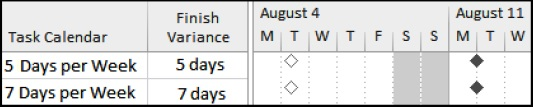
❖ The milestone on a 5-day per week calendar has a 5-day variance which is not the elapsed variance, and
❖ The milestone on a 7-day per week calendar has a 7-day variance which is the elapsed variance.
Note: When you need to calculate a milestone variance in calendar days, it is best to place the milestone on a 7-day per week calendar without holidays to ensure the Variance calculates the elapsed duration.


